This is my review of the 2026 Lenovo ThinkPad X1 Carbon in its refreshed 14th gen Aura Edition built on Intel Panther Lake hardware.
This X1 Carbon revision is a complete revamp of the series, and not just a spec bump like some of the previous-gen variants. Sure, Lenovo updated it to the latest hardware platform of the year, namely Panther Lake, in several different CPU/GPU options, but they also redesigned the chassis from scratch to improve serviceability and reliability on one end, as well as allow for higher power settings or/and cooler temperatures with serious multitasking and sustained demanding loads.
All these make this X1 Carbon 2026 generation one of the best ultraportables on the market, if not the best. This lineup is faster than before, lasts longer on battery, still offers a multitude of specs and display options to choose from, and should last longer with the way the new chassis is designed to allow easier repairs, something the X1 Carbon hasn’t offered in about a decade. On top of these, ergonomics are stellar on this 14th-gen lineup, with some of the tiny quirks of older Carbons being addressed, which is frankly where this outmatches all its rivals. We’ll discuss all these particularities further down in the review.
Our configuration is the mid-range jack-of-all-trades Core Ultra 7 356H with 32 GB of RAM, which offers a competent 16C/16T processor in a fairly-priced package. However, we’ll also cover the top-tier Ultra X7 358H option that bundles alongside the far more capable Arc B390 graphics, as well as the entry-tier Core Ultra 7 355, which isn’t as powerful as the other two, but is the most widespread option between markets and the one available in the more affordable Carbon variants.
Follow this link for updated prices and configurations in your area , at the time you’re reading this article.
Specs sheet – Lenovo ThinkPad X1 Carbon gen14, Aura Edition
Lenovo ThinkPad X1 Carbon Aura Edition, 2026 model, 14th gen
Screen 14 inch, 16:10 aspect ratio, matte, touch or non-touch
Processor Intel Panther Lake Core Ultra Series 3,multiple other options, including Ultra X7 358H and Ultra 7 355
Video Intel Graphics, 4 Xe Cores, up to 2.45 GHzArc B390 with 12 Xe Cores on the X7 358H variant
Memory 32 GB LPDDR5-8533 (soldered), up to 32 GB
Storage single M.2 2280 slot – Micron 2650 gen4 drive
Connectivity Wireless 7 (Intel BE201) 2×2, Bluetooth 5.4
Ports left: 2x USB-C with Thunderbolt 4, HDMI 2.1 TMDS, mic/headphone, optional nano SIM slot
Battery 58 Wh, 65W USB-C GaN compact charger, dual piece with long cables
Size 313 mm or 12.30” (w) x 216 mm or 8.49” (d) x up to 16.85 mm or 0.66″ (h)
Weight 2.2 lbs (.99 kg) + .28 (.61 lbs) for the USB-C charger and cables, EU versionIPS touchscreen version with 4G is the heaviest variant, at 1.14 kg (2.52 lbs)
Extras clamshell format with 180-degree hinge,
Lenovo also offers this series in several configurations, all based on the Intel Panther Lake platform. The important options are the following (as well as their vPro-capable alternatives):
Intel Core Ultra X7 358H / 368H vPro – 16C/16T processor with Arc B390 graphics, 12 Xe GPU cores;
Intel Core Ultra 7 356H / 366H vPro – 16C/16T processor with Intel graphics,4 Xe GPU cores;
Intel Core Ultra 5 255, Ultra 7 355 / 365 vPro – 8C/8T processors with Intel graphics, 4 Xe GPU cores.
We’ll discuss them all in the hardware and performance section further down.
Design and functionality This X1 Carbon gen14 looks and feels much as you’d expect from a premium ThinkPad: an all-black design with soft materials, in a lightweight chassis that feels premium and well made.
Design-wise, there are a bunch of iconic pieces of branding on this chassis, with the ThinkPad X1 logo on the lid and the ThinkPad engraving on the armrest. Furthermore, this unit is the FIFA World Cup 26 Edition, which adds an extra muted icon on the lid, with the World Cup Trophy and FIFA writing. The standard variants lack this extra detail, but are otherwise identical.
But while at first look this 2026 generation looks and feels just like previous-gen X1 Carbons, internally this is a completely new design. In fact, Lenovo revolutionized the entire main chassis in order to create more space inside and improve the hardware’s serviceability and repairability. They implemented what they call a Space Frame design, which means the motherboard is more compact and integrates components on both the top and the bottom, resulting in extra interior space that was used for higher-capacity fans and larger heatsinks, in order to push more power into the hardware and allow for better performance.
Furthermore, this design implements a removable base plate that includes the keyboard, touchpad, and armrest, something we haven’t seen in ThinkPads in a very long while. It also allows for more internal parts to be swappable and replaceable if required, such as the IO ports, the fans, the speakers, the battery, and of course the SSD and the 4G/5G module.
VIDEO With all these changes, this 2026 X1 chassis remains about the same size and weight as before. However, there are actually some differences between the various configurations, with the main chassis on the OLED version being thinner and lighter and made out of a magnesium alloy, while the IPS variants are made out of aluminum and are slightly thicker and heavier. For example, our review unit with the non-touch OLED weighs just .99 kg, while the touch IPS configuration with a 5G module weighs closer to 1.15 kg.
The ergonomics of this series are darn perfect. The soft rubber feet offer excellent grip on a flat surface; all the materials are smooth and grippy, and there are no sharp edges or corners whatsoever.
Of course, the dark smooth coatings are going to show smudges, but even that aspect is not quite as bad as you’d expect. There’s an image above showing how this unit looks after using it for a couple of days and before cleaning it for the photos: you’ll notice some finger oil on the armrest and on some of the keys, but none of those surfaces look that bad.
I also like the entire thought process on how the screen opens up and adjusts: there’s a notch that allows perfect grip when picking up the display, the hinges work smoothly and yet keep the screen firmly set up without moving, and then the hinges open up flat to 180 degrees. If you need more than that, Lenovo offers a 2-in-1 version of this laptop as well, with the X1 2-in-1 convertible. Just be aware that’s a heavier device, and not that easy to find in most markets.
Finally, I’ll mention how the keyboard deck seamlessly integrates within the main frame, without leaving any cracks around. And the edges are all smooth and blunted and friendly on the wrists. There’s no other laptop that feels as grippy, robust, and friendly to the touch as this one does. I just hope the coatings won’t peel and chip off with time.
As for the IO, this generation improves some of my nits with the older designs: Lenovo put USB-C ports on both edges now, and they moved away the power button that was too easy to press by mistake in the past, and pretty much had to be disabled in the settings. These aside, there are still full-size HDMI and UBS-A ports on this ultraportable chassis, and a Lock. But what’s still missing is a card-reader – with an SD card reader, this would have been the perfect IO.
All in all, this 2026 gen14 ThinkPad X1 Carbon is the ultimate ultraportable laptop design: it looks and feels much like a classic ThinkPad, offers excellent ergonomics and practicality in a premium lightweight format, and is now an easier chassis to open up, service, and repair when needed, which should keep this going for longer. If you’ve been here on Ultrabookreview.com for a while, you might remember I was an avid ThinkPad user back in the day, and I’m glad to see the paradigm shift brought up by this chassis.
Keyboard, touchpad I can’t tell for sure whether Lenovo changed the keyboard on this 2026 X1 Carbon in any way compared to the previous iterations.
On a first look, it appears that they have not, but actually using this keyboard for the last weeks or so, I find it somewhat shallower than I remember from past Carbons. That’s not an issue for me, as I prefer this sort of shallow short-stroke keyboard, but it is something to further look into in other reviews – most mention this is an excellent keyboard and none that I’ve seen complain about the stroke depth. This still offers 1.5 mm of key travel on most keys (with 1.35 mm on the keys around the TrackPoint), much like on the 13th-gen variant.
Regardless, I got along well with this keyboard; it’s a fast, accurate, and fairly quiet typer. One of the better in this segment.
The layout is standard for a ThinkPad, with black smooth keycaps, properly sized and spaced, and somewhat smaller arrow keys grouped together with the PgUp/PgDn keys. There is one aesthetic difference, however, as the writing on the keys is now in the middle of the keycaps, and not on the top-left as in the past.
Furthermore, new for this generation is the addition of the power button at the top-right part of the keyboard – not a fan; it takes time to get used to, as I prefer having the Delete key in that position. In the past, the power button did not interfere with the keyboard, as it was positioned on the edge, and the finger sensor was implemented instead of the right CTRL key. At least this new layout brings back that right CTRL, which I know some will appreciate. They could have swapped the Delete and Power/finger sensor key, though; I’ve seen that trick implemented well on a few other devices.
The keys are backlit, with white LEDs and two brightness levels to choose from (as well as an Auto mode). They’re not very bright, and a fair bit of light spill from underneath the keycaps – but this system works well enough overall.
For the touchpad, Lenovo offers either a standard clickpad with physical top buttons (meant for TrackPoint use), or a haptic touchpad without physical buttons. I have the latter on this review unit, which is made out of matte glass; the regular clickpad is a plastic (Mylar) surface.
This haptic implementation comes with a button area at the top, that can either be enabled or disabled in the settings. If disabled, the entire surface works as a large touchpad for swipes, taps, etc. If enabled, only the lower part underneath the graphical line works as a touchpad, while that top area works as buttons for TrackPoint users. Regardless, if you’re a die-hard TrackPoint user, the classic design with physical buttons is probably the one I’d recommend, although some hardware configurations might just force you into the haptic options – upper-tier variants just come with the haptic touchpad as standard.
Overall, I found this haptic version just fine for general use, and I’d expect most potential buyers to prefer this variant.
I also appreciate how the design leaves enough physical space between the touchpad and the keyboard at the top, and the laptop’s front lip at the bottom. This is a functional approach that minimizes potential ghost touches when using this computer on the lap, an issue I constantly experience on my MacBook Air, which implements an oversized touchpad that spans closer to the front lip. That’s also an issue on the competing ExpertBook Ultra or the XPS 14, for that matter.
For biometrics, there’s both a finger sensor and an IR camera on this laptop. It’s good to have both options.
14-inch display – matte OLED, but IPS options as well The X1 Carbon is still available with 14-inch 16:10 displays, with either IPS or OLED panels, both in matte anti-glare implementations.
The IPS panel is a more basic option: 1920 x 1200 px resolution, 60 Hx refresh, 500 nits of brightness, 1200:1 contrast, 100% sRGB colors. It’s brighter than the IPS options in previous Carbons, but is still a rather mediocre display for a device of this caliber.
The OLED panel, on the other hand, looks much nicer and is the one we have here, in the non-touch variant. There’s also a touch version available. The standard non-touch is the one I’d get, since it offers excellent viewing angles and none of the screen-door effects caused by the digitizer layer on the touch variants.
To be more precise, this panel is what Lenovo calls the AGARAS (“anti-glare/anti-reflective/anti-smudge) OLED in the non-touch variant. As far as the finishing goes, the anti-glare on this OLED cuts off reflections quite well and makes the laptop usable outdoors in bright light. I’d call this a semi-gloss finish, as it’s not as matte as a traditional IPS matte finish, but is a versatile jack of both worlds – clean looking, and not a reflective mirror.
The panel itself is a newer-gen OLED from Samsung, with 500 nits of SDR brightness. That means it’s not the same OLED implemented on the ExpertBook Ultra, which is an even brighter variant. Otherwise, this is what you’d expect from an OLED: punchy, beautiful, and fast.
Here are the technical specs of this OLED panel:
Panel HardwareID: Lenovo LEN41F1 (Samsung ATNA40HQ09-0);
Coverage: 100% sRGB, 92.9% AdobeRGB, 100% DCI-P3;
Measured gamma: 2.21;
Max brightness in the middle of the screen: 523.30 cd/m2 on power;
Min brightness in the middle of the screen: <5 cd/m2 on power;
Contrast at max brightness: 1:1;
White point: 6254 K;
Black on max brightness: 0 cd/m2;
PWM: Yes (discussed above).
Just make sure you understand the particularities of this OLED tech and use it responsibly with static backgrounds. And be aware of the OLED flickering, which could be a deal-breaker for this panel if you plan on using your laptop at night, at low brightness levels. The IPS panel option doesn’t flicker in any way.
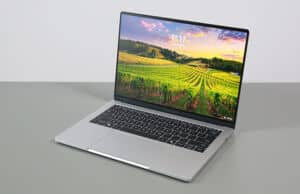
Now, back to the semi-gloss finish, of course there’s a difference between how the content is perceived on the screen indoors or used outside, as shown by this image. But that’s the case with every other screen. The complaints about the contrast and colors looking muted on this screen version are rather exaggerated imo.
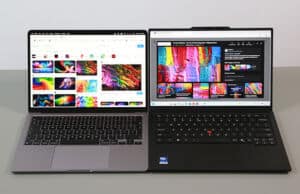
As for the general muddiness of this finish on white/light backgrounds and small texts, that’s a particularity you’ll just have to accept with OLED panels. It doesn’t appear different to me than on glossy OLEDs. I’ve added one more image of the Yoga 9i (bottom, glossy) and the ThinkPad X1 (top, matte), and I’m not really seeing a real difference in image quality between the two finishes.
Finally, I’ve added below a few more images of the ThinkPad X1 (semi-gloss OLED, 500 nits), ExpertBook Ultra (semi-gloss OLED, 600 nits), and the Yoga 9i 2-in-1 (glossy OLED, 500 nits), with a window just behind the camera, to better showcase the differences in reflections and perceived content between these when used in stronger light environments.
Both of the semi-gloss finishes do a solid job cutting off reflections, but you’ll still want to look at these straight-on, as there’s a way the finish diffuses light that impacts the perceived contrast and colors. You can use these in stronger light, but the experience is still not without some inconveniences – I do preffer this over having glare and reflections, at least. I’ll also add that there’s a notable difference in whites and how colors look on the ExpertBook Ultra in these conditions; partially due to the OLED getting brighter on the ExpertBook, but could be caused by a difference in the anti-glare layer. For strong light use, the OLED on the ExpertBook would be my first choice, but this one on the ThinkPad is mostly fine as well.
Hardware and performance Our review model is a mid-specced configuration of the 2026 Lenovo ThinkPad X1 Carbon Aura Edition, with an Intel Core Ultra 7 356H processor and Intel graphics, 32 GB of LPDDR5-8533 memory, and a 1 TB gen4 SSD.
Disclaimer: This review unit was provided by Lenovo for this article. We tested it with the software available as of late July 2026 (BIOS N4OET51W – 1.14, Vantage 4.2601.31.0, Intel Graphics Driver 32.0.101.8860). This is a mature software package, 3+ months after the series was launched.
Spec-wise, this series is based on Intel’s Panther Lake hardware platform, with Core Ultra Series 3 processors and either Intel Graphics or Intel Arc B390 integrated graphics. Panther Lake is an updated SoC (System on a Chip) architecture for 2026.
The CPU on this review unit is the Core Ultra 7 356H, a hybrid design with 16 Cores (4x Performance, 8x Efficiency, and 4x Low-Power Efficiency) and 16 Threads. These are Intel’s latest-gen Cougar Cove and Darkmont cores, and are designed to balance performance and efficiency in a way not possible with past iterations.
Previously, the X1 Carbon gen13 was built on Intel Lunar Lake 200V hardware, which ran efficiently but didn’t offer much in performance, as well as some later Arrow Lake U variants, which improved on the CPU performance. With the Panther Lake Core Ultra H hardware, the gen14 refresh is significantly faster in sustained CPU loads and offers a 15% boost in IPC.
On the GPU side, however, the Core Ultra 7 356H bundles an entry-tier Intel Graphics iGPU with only 4 Xe GPU cores. That makes it slower than the past Arc chip in the Lunar Lake platform, so this is not meant for any graphics-intensive chores or for gaming.
For that, Lenovo offers the Core Ultra X7 358H configuration (or the X7 368H vPro equivalent), which bundles a similar 16C/16T processor, but adds an Intel Arc B390 iGPU with 12 Xe Cores, the fastest iGPU technology available in this sort of format today. This option isn’t available worldwide, though, and costs a fair bit extra where available.
Furthermore, Lenovo also offers Core Ultra 5 335 and Core Ultra 7 355 variants of this X1 Carbon, which are lesser 8C/8T processors with the basic Intel Graphics 4 Xe cores. In just a few words, the Core Ultra 5 355 and the Ultra 7 355 are identical in what they can do, with minimal speed differences between them. These variants are far more affordable than the other two, but limit the notebook’s sustained performance capabilities, so are primarily an option to consider for lighter casual use and moderate multitasking. Think of these as a follow-up for the past Lunar Lake variants, but with more limited graphics.
The RAM on this notebook is onboard, with 32 GB of LPDDR5X-8533 on this unit. Configurations with 64 GB of RAM LPDDR5X-9600 memory are available as well, but only in some markets, and only paired with the Core X7 hardware.
For storage, there’s an M.2 2280 SSD slot inside the laptop. Our unit comes with a middling gen5 Micron drive, and you can buy the laptop with various amounts and types of storage. Or you can opt to upgrade the drive yourself. Dual-sided SSDs up to gen5 8 TB will work in this unit.
The SSD is the only upgradeable part on this laptop. The components are hidden behind the back panel, which can be easily taken out, as it is held by only four screws, self-retaining and with Philips heads. That hasn’t changed from the previous chassis design, this being one of the easiest laptops to get into.
The image below showcases the more compact mainframe, the larger fans and the full 2280 SSD slot. The unused space at the left is where the 4G/5G module slots in, if opted for.
As far as the software goes, this ThinkPad gets the Lenovo Vantage control app with access to the power profiles, battery and screen settings, updates, etc.
There are three performance/thermal profiles to choose from:
Best Performance – allows the hardware to run at 65W peak with 30-35W sustained in mixed-use and 45W sustained in taxing CPU loads, while the fans ramp up to ~33-35 dBA;
Balanced – allows the hardware to run at 65W peak, and then settles at 25W sustained in mixed-use, with the fans ~30-32 dBA;
Best Power Efficiency – limits the CPU to 12W sustained to favor fan noise <30 dBA.
You can access these modes by hitting the F8 key, or find them in the Vantage App, under Device Settings >> Power.
These power modes are fairly well designed, although they could use a little more tweaking. Raise the dbA limit for Best Performance to around 35 dBA, and make sure the Balanced mode performs reliably, as right now it’s quite effy. For instance, I only got this Balanced mode to work properly by manually disabling Smart Modes and selecting the Working option from the list, and even then it didn’t work as it should with all tasks.
Before we move on, here are a handful of logs with daily use on the existing Best Power Efficiency profile.
Productivity Performance and Benchmarks On to more demanding loads, we start by testing the CPU’s performance in the Cinebench R15 loop test.
On the Best Performance Profile, the Intel Core Ultra 7 356H processor peaks at around 65W of power for brief seconds, and then stabilizes at 45W, with temperatures in the mid-90s °C, fan levels under 35 dBA, and scores of around 2700 points. That’s with the laptop raised off the desk.
On Balanced, the system doesn’t perform as it should and sets a 12W power limit. It should work somewhere around 25W instead, but as mentioned, the Balanced mode proved quirky on this notebook. At 25W, this processor should return scores of around 2200 points, with temperatures in the low 70s °C, which would be fair results for a mid-level profile at around 30 dBA.
Best Efficiency Mode should be the one settling for the 12W power limit, with fans way under 30 dBA. With these settings, the scores drop to only 1300 points.
Finally, our sample performed excellently on battery power, stabilizing at 45W of power in Performance mode, with similar scores as when plugged in.
All these are illustrated in the graph below.
To put these in perspective, here’s how this Core Ultra 7 356H implementation fares against other hardware platforms available in current and past-generation thin and light laptops .
First, this hardware is much faster than the Core Ultra 258V in the 2025 X1 Carbon or the Core Ultra 155H in the 2024 X1 Carbon.
Then, the Ultra X7 358H at similar power performs about the same, while the Ultra 7 355 is notably slower, both options available for this chassis.
Finally, AMD and Qualcomm offer hardware that can score 10-30% higher in sustained multi-threaded loads. However, that hardware is either not available in formats similar to this ThinkPad, or/and struggles with compatibility with 3rd party software, as is still the case with the Qualcomm platform. So while these hardware options exist in theory, they do not in actual products that potential Carbon buyers could reliably choose instead.
We then went ahead and further verified our findings with the more taxing Cinebench R23 loop test and in Blender. We measured similar behavior, power limits, fan noise, and temperatures, with Balanced mode actually working properly in these tests.
We then ran the 3DMark CPU profile test.
Finally, we ran our combined CPU+GPU stress tests on this notebook, on the Performance profile. 3DMark stress runs the same test for 20 times in a loop and looks for performance variation and degradation over time. This unit passed the test both flat on the desk and raised on a stand, which means the performance is not thermally limited over time.
Benchmark results and performance summary With that out of the way, let’s get to some benchmarks. We ran our standard set of tests with the laptop on Best Performance mode (30 to 45W sustained TDP) and the screen set at its default 2.8K resolution.
Here’s what we got.
3DMark 13 –CPU profile: max – 9706, 16 – 9765, 8 – 6104, 4 – 4048, 2 – 2178, 1 – 1137;3DMark 13 – Fire Strike: 6601 (Graphics – 7218, Physics – 28706, Combined – 2362);3DMark 13 – Solar Bay: 12062.3DMark 13 – Steel Nomad Light: 2498.3DMark 13 – Time Spy: 3426 (Graphics – 3033, CPU – 12967);3DMark 13 – XeSS: XeSS Off – 6.67 fps, XeSS On – 19.08 fps, 186.1% performance difference.
Uniengine Superposition – 1080p Extreme: 1647;Uniengine Superposition – 1080p Medium: 4607;
Aida64 Extreme, memory test: 117562 MB/s read, 119279 MB/s write, – MHz latency;PCMark 10: 8619 (Essentials – 11126, Productivity – 15015, Digital Content Creation – 10400);GeekBench 6.6.0 64-bit: Multi-core: 15571, Single-Core: 2762;GeekBench AI 1.7.0 (ONNX, CPU): Single: 4503, Half: 1835, Quantized: 8363;CineBench R15 (best run): CPU 2937 cb, CPU Single Core 302 cb;CineBench R23: CPU 18151 pts (best run), CPU 16729 pts (10 min loop test), CPU Single Core 2030 pts (best run);CineBench 2024: CPU 1012 (10 min run), CPU Single Core 119 pts;CineBench 2026: CPU multiple threads: 4141 (10 min run), CPU single thread: 497 pts.
And here are some work-related benchmarks, on the same Best Performance profile:
Blender 5.1.2 – BMW Car scene – CPU Compute: 2m 04s ;Blender 5.1.2 – Classroom scene – CPU Compute: 5m 23s;Blender 5.1.2 – Classroom scene – GPU Compute, OneAPI: 2m 17s;
SPECviewperf 2020 – 3DSMax 07: 17.78;SPECviewperf 2020 – Catia 06: 15.06;SPECviewperf 2020 – Creo 03: 26.11;SPECviewperf 2020 – Energy 03: 4.12;SPECviewperf 2020 – Maya 06: 79.25;SPECviewperf 2020 – Medical 03: 9.61;SPECviewperf 2020 – SNX 04: 6.60;SPECviewperf 2020 – Solidworks 07: 38.36;SPECviewperf 15 – 3DSMax 08: 17.87;SPECviewperf 15 – Blender 01: 18.88;SPECviewperf 15 – Catia 07: 9.90;SPECviewperf 15 – Creo 04: 26.97;SPECviewperf 15 – Energy 04: 9.39;SPECviewperf 15 – Enscape 01: 13.80;SPECviewperf 15 – Maya 07: 80.21;SPECviewperf 15 – Medical 04: 21.01;SPECviewperf 15 – Solidworks 08: 25.02;SPECviewperf 15 – Unreal Engine 01: 38.27;V-Ray Benchmark: CPU – 12868, CUDA – 346.
This is an interesting mobile platform designed for serious multitasking, quite capable on the CPU and RAM ends, but not that much when it comes to graphics.
This profile tends to set a high TPD limit in heavy CPU multi-threaded tests, close to 45W, but then drops this limit towards 30-35W in mixed-use, most likely in order to keep internal thermals at bay. 30W is still plenty enough power for the Intel Graphics iGPU, and should barely suffice for the Arc B390 as well, something to consider if you’re looking at an X7 358H configuration instead.
The Core Ultra 7 356H offers solid single-core performance and good multi-threaded capabilities. This lightweight X1 Carbon implementation performs within 80% of what a full-power Core Ultra 9 386H can do in something like an ROG Zephyrus G14 , and comes at about 90% of a Core Ultra X7 358H at similar power levels .
Sure, alternative platforms from Qualcomm can run faster in multi-threaded loads, but then there’s the matter of software compatibility to consider. And while AMD Strix/Gorgon Point hardware can also run somewhat faster, you’re not really going to find that in similar devices. So all in all, this Panther Lake Core Ultra Series 3 H hardware in this properly-powered implementation is one of the more competitive daily-drivers and multitaskers available in the ultrabook space today.
On the GPU side, however, the Intel Graphics chip with only 4 Xe cores isn’t much of a performer. It’s slower than the Arc 140T/140V iGPUs implemented in 2024/2025 models, and slower than the Radeon 890M chip on AMD devices. Furthermore, it’s less than half the performance of the Arc B390 bundled with the X7 358H chip on this laptop. So you’re not getting this hardware for graphics-intensive tasks.
The next section explains how this Core Ultra 7 356H implementation compares to the Ultra X7 358H and Ultra 7 355 configurations in overall capabilities.
Panther Lake Core Ultra 7 356H vs. Panther Lake X7 358H, Core Ultra 7 355, others Here’s a very brief comparison of these results on the Panther Lake Ultra 7 356H implementation versus a few other Intel, AMD, and Qualcomm platforms available in the ultraportable space today.
The results for the X7 358H and the Ultra 7 355 are especially interesting, as those platforms are offered on the X1 Carbon as well, at least in some regions they are. So you can better understand the performance differences between these options on this sort of chassis.
ThinkPad X1 Carbon 2026, ExpertBook Ultra B9406 ,Yoga 9i 2-in-1 ,ThinkPad X1 Carbon 2025 ,Zenbook A14 UX3407 ,Snapdragon X2 Elite Extreme Zenbook S 16 UM6506 ,
3DMark – Fire Strike 6590 (G – 7228, P – 27659, C – 2350)
14237 (G – 16808, P – 28972, C – 4893)
6322 (G – 6969, P – 21664, C – 2293)
8354 (G – 10134, P – 17697, C – 2687)
9632 (G – 10079, P – 25526, C – 4251)
7505 (G – 7946, P – 25618, C – 3031)
3DMark – Time Spy 3426 (Graphics – 3033, CPU – 12967)
7474 (Graphics – 6878, CPU – 14693)
3048 (Graphics – 2748, CPU – 8003)
4236 (Graphics – 3954, CPU – 7124)
4077 (Graphics – 3650, CPU – 12152)
3598 (Graphics – 3241, CPU – 9599)
Uniengine Superposition – 1080p Extreme 1647
3747
1674
1974
–
1600
CineBench R23 (best run) 18151 cb – multi core,
19809 cb – multi core,
11150 cb – multi core,
10081 cb – multi core,
–
17484 cb – multi core,
CineBench 2026 (10 min) 4141 cb – multiple threads,
4533 cb – multiple threads,
2505 cb – multiple threads,
–
4533 cb – multiple threads,
–
Blender 5.1.2 – CPU, Classroom 5m 23s
5m 06s
8m 39s
–
3m 33s
–
SPECviewperf 2020 – 3DSMax: 17.78
38.15
19.29
26.90
–
40.95
SPECviewperf 2020 – Catia: 15.06
30.14
15.35
21.11
–
33.25
SPECviewperf 2020 – Maya: 79.25
155.74
79.26
14.78
–
125.32
Briefly, the 7 358H platform can deliver ~5-10% higher scores in multi-threaded loads, with minimal gains in IPC. However, the Arc B390 is more than 2x faster in graphics loads, with a similar real impact in actual applications and games. So if you need graphics capabilities in this sort of device, you just have to opt for something with a B390 iGPU in it.
As for Ultra 7 355, that delivers about 60% of the sustained CPU performance offered with the 16C/16T options, and is still a little bit faster than the Lunar Lake Core Ultra 7 258V implemented in the previous-gen X1 Carbon 2025. Hence, the Ultra 5 355 and the Ultra 7 355 configurations are meant for light to medium use, but not ideal for heavier loads.
Balanced Mode – still fast, at around 30 dBA Balanced mode keeps the fans even quieter and sets a middling power limit of around 25W in sustained loads.
However, I only got this Balanced mode to work properly at times by manually disabling Smart Modes and selecting the Working option from the list. And even this trick didn’t work for all tests and activities. Keeping this setting on Auto or on other options impeded the profile, and imposed a 12W power limit on the hardware. So for the time being, Balanced mode seems to be bugged; something to keep in mind, and something Lenovo will hopefully address with future software updates.
Anyway, here are some benchmark results for this mode (those that worked):
3DMark 13 – Fire Strike: 6241 (Graphics – 7166, Physics – 19032, Combined – 2097);3DMark 13 – Time Spy: 3329 (Graphics – 2976, CPU – 10159);Uniengine Superposition – 1080p Extreme: 1612;CineBench R23 (10 min loop): CPU 12919 cb, CPU Single Core 2012 cb;Blender 5.1.2 – Classroom scene – CPU Compute: 6m 36s.
Minor differences in the GPU tests, and 20-25% differences on the CPU side in the few tests that actually allowed this Balanced mode to work properly at its 25W power limit.
Gaming Performance While this ThinkPad X1 Carbon is not a gaming laptop or an iGPU-oriented platform either, we ran a couple of DX11, DX12, and Vulkan games on the Performance profile of this Core Ultra 7 356H configuration, at FHD+ resolution, with Low/Lowest graphics settings. I threw in a few other platforms for comparison.
Low settings ThinkPad X1 Carbon 2026, ExpertBook Ultra 2026, Zenbook S14 2026 ,ThinkPad X1 Carbon 2025, Zenbook S14 2024, Zenbook S 16 2024,
Cyberpunk 2077 25 fps (16 fps – 1% low)
54 fps (36 fps – 1% low)
24 fps (12 fps – 1% low)
–
–
–
Cyberpunk 2077 58 fps (24 fps – 1% low)
112 fps (40 fps – 1% low)
56 fps (26 fps – 1% low)
–
–
–
Far Cry 6 46 fps (36 fps – 1% low)
90 fps (70 fps – 1% low)
46 fps (38 fps – 1% low)
46 fps (34 fps – 1% low)
52 fps (38 fps – 1% low)
54 fps (46 fps – 1% low)
Horizon Forbidden West 46 fps (36 fps – 1% low)
72 fps (56 fps – 1% low)
45 fps (36 fps – 1% low)
42 fps (30 fps – 1% low)
45 fps (32 fps – 1% low)
40 fps (30 fps – 1% low)
Shadow of Tomb Raider 67 fps (54 fps – 1% low)
103 fps (58 fps – 1% low)
62 fps (45 fps – 1% low)
58 fps (30 fps – 1% low)
66 fps (26 fps – 1% low)
72 fps (56 fps – 1% low)
The Witcher 3: Wild Hunt 80 fps (62 fps – 1% low)
110 fps (75 fps – 1% low)
74 fps (50 fps – 1% low)
74 fps (40 fps – 1% low)
78 fps (56 fps – 1% low)
60 fps (38 fps – 1% low)
Cyberpunk, Horizon, Witcher 3 – recorded with MSI Afterburner in game mode;
Far Cry, Tomb Raider – recorded with the included Benchmark utilities.
While not nearly as capable as the B390 chip in games, most titles are still playable, even heavier ones once you enable XeSS and Frame Generation where supported. Most results are quite close to what we measured on the Lunar Lake platform last year – the higher CPU power that allows the iGPU to run at full potential here, as well as the updated Xe 3rd generation cores on this Panther Lake iGPU, allow for these fair results here.
Let’s go through some logs.
On Best Performance, the system runs at 30-40W of sustained power between the tested titles, which is still plenty for the iGPU to perform at its maximum potential.
What’s interesting is that the 35-40W limit is maintained while the laptop is raised off the desk, with temperatures just shy of 80 °C at 35W and close to 90 °C at 40+W. The system automatically decides on the target power between titles, although it just doesn’t have to run at 40+W with this iGPU.
Flat on the desk, the internals jump over 80 °C, and then the system gradually drops the allocated power towards 30W, perhaps to keep the thermals at bay. As a result, internals usually don’t go over 80s °C while using the laptop flat on the desk, but that again might vary between games; the sustained power levels are different between the two scenarios.
Gaming on Balanced mode sets a 25W power limit, with temperatures in the mid-60s °C. The performance drops minimally, and the fans run quieter at sub-30 dBA.
Then there’s the Best Power Efficiency mode, which sets a more aggressive 13W limit, with an impact on GPU speeds and general performance. Not a profile meant for gaming or any serious activity.
Finally, the laptop performs well on battery power, on par with the plugged-in mode. Just don’t expect to game for longer than an hour or so.
Noise, Heat, Connectivity, speakers, and others The cooling module on this laptop is rather minimal, with two fans, two heatsinks, and a single heatpipe.
For comparison, this is the cooling module on the previous 13th-gen ThinkPad X1 Carbon 2025. Smaller fans and heatsinks and a similar single heatpipe.
Despite this, Lenovo can drive 45W of sustained power on this laptop at sub-33 dBA, yet that’s with high internal temperatures in the low 90s °C with sustained multi-threaded CPU loads. That’s toasty! For mixed-use, on the other hand, the system tends to settle at around 35W with temperatures in the low 80s °C, which is a more acceptable sweet spot.
There’s still perhaps room to further bump the fan speeds on the Best Performance mode here, to around 35 dBA, with perhaps a further impact on the internal temperatures.
What I must mention is that these updated fans on the gen14 X1 Carbon no longer experience the same high-pitched hissing as the past fans, and that means they’re perceived as quieter with heavy loads and hardly noticeable at all with general use. Furthermore, these fans idle often with casual use, regardless of the selected power profile or if the device is plugged in or runs on battery power.
Anyway, as far as the noise levels go, we measured up to ~33 dBA on Best Performance at head level, around 30 dBA on Balanced, and sub-30 dBA on Best Power Efficiency modes.
As for thermals, the chassis stays comfortable with general use, with the warmest spot at ~35 °C around the 7,8 keys. This can increase towards 40 °C with heavier, longer-time multitasking, but overall the laptop never felt uncomfortable to the touch or on the lap.
*Daily Use – streaming Netflix in EDGE for 30 minutes, Best Power Efficiency Mode, fans at 0 dB
With demanding loads, a similar hotspot that goes into the high 40s and close to 50 °C develops around the same area, at the top of the keyboard.
However, the touchpad and keyboard areas that you’ll usually come in contact with barely warm up past 40s °C, which isn’t bad considering the size of this device and the high internal temperatures. Lenovo were able to properly isolate the internals from the external magnesium chassis.
*Gaming – Best Performance mode – playing Witcher for 30 minutes, fans at ~35 dB
For connectivity, there’s the latest-gen Wi-Fi 7 and Bluetooth 5.4 through an Intel BE201 module on this laptop. Everything performed fine during my time with these laptops. An optional 4G or 5G Qualcomm Snapdragon X61 internal module is available as well for this series.
Audio is handled by a set of stereo speakers that fire from the bottom and sides, and not through the keyboard as in the past. They can get quite loud and offer decent audio quality, a slight improvement over the previous X1 Carbon, and fairly close to the better-sounding audio systems available in the 14-inch space. They’re not MacBook Pro like speakers, but they’re close to what direct rivals such as the XPS 14 or the ExpertBook Ultra offer.
The camera, on the other hand, goes up to a 10 MPx shooter with IR, TOF, and a physical shutter. This is one of the better webcams available on a Windows ultrabook today, even in dimmer light, with fair image quality and good sharpness, and a wide viewing angle. Just keep in mind that this 10 MPx camera is an extra option, and the base camera is 5 MPx and still fairly good.
Battery life – excellent runtimes There’s a 58 Wh battery inside this X1 Carbon Aura Edition, about on par with past X1 Carbon generations and smaller than what other premium 14-inch laptops offer today. Including those around a similar 1kg weight limit, such as the ExpertBook Ultra or the LG Gram.
Here’s what we got in our battery life tests on this configuration with the matte OLED display, with the screen’s brightness set at around 120 nits (~60% brightness). I’ve also set the Windows 11 power mode to Best Power Efficiency.
<3 W (~20 h of use) – idle, Best Power Efficiency Mode, screen at 60%, Wi-Fi ON;6-7 W (~8-9 h of use) – text editing in Google Drive, Best Power Efficiency Mode, screen at 60%, Wi-Fi ON;4-5 W (~13 h of use) – 1080p fullscreen video on Youtube in Edge, Best Power Efficiency Mode, screen at 60%, Wi-Fi ON;4 W (~15 h of use) – Netflix fullscreen in Edge, Best Power Efficiency Mode, screen at 60%, Wi-Fi ON;8-10 W (~5-8 h of use) – browsing in Edge, Balanced Mode, screen at 60%, Wi-Fi ON.
The platform offers excellent efficiency and allows for solid runtimes even with the mid-sized battery. And I expect the Core Ultra 5 325/Ultra 7 355 variants to run even more efficiently.
For comparison, here are my results on the Lunar Lake configuration from last year, equipped with the entry-tier IPS display:
5-6 W (~10 h of use) – text editing in Google Drive, Best Power Efficiency Mode, screen at 50%, Wi-Fi ON;3.5 W (~15 h of use) – 1080p fullscreen video on Youtube in Edge, Best Power Efficiency Mode, screen at 50%, Wi-Fi ON;4 W (13+ h of use) – Netflix fullscreen in Edge, Best Power Efficiency Mode, screen at 50%, Wi-Fi ON;7-9 W (~6-8 h of use) – browsing in Edge, Balanced Mode, screen at 50%, Wi-Fi ON.
These are a little bit better than on the refreshed version with the OLED display, but close.
So all in all, Panther Lake meets the efficiency of Lunar Lake while significantly increasing this notebook’s overall multitasking capabilities. Win Win!
The laptop ships with a 65W USB-C charger. The brick is highly compact, but the dual-piece design with all the cables adds in plenty of bulk. I would have appreciated a more modern design with the plug integrated within the brick and a long detachable cable (and even perhaps two USB-C ports). As it is, this charger design isn’t quite up to par with the general feel of this laptop.
Price and availability- Lenovo ThinkPad X1 Carbon The Lenovo ThinkPad X1 Carbon Aura Edition gen14 is available across the world at the time of this article. However, not all options are available everywhere, and since this is a premium business model, you might not be able to find it through the standard retail shops in some regions, so you should ask the specialized shops or go straight to Lenovo’s website, where available.
Follow this link for updated prices and configurations in your area .
For the US, for instance, the X1 Carbon is only offered in the lower-tier Core Ultra 5 325 and Ultra 7 355 specs, with up to 32 GB of RAM and 2 TB of storage. These start at around $2200, but pricing adds up quickly once you check 32 GB of RAM and 1 TB of storage; that’s without accounting for any special/timely discounts, which Lenovo throw in often once their lineups are a few months old.
Over here in Europe, the base model starts at around 2300 EUR, but all the other options are available as well, including the Core Ultra 7 356H model tested here and the top Core Ultra X7 358H configurations. The 356H/32GB/1TB variant is listed at a little under 3000 EUR, while the 358H/64 GB/1TB goes north of 3500 EUR.
Regardless of your option, I’d surely go with one of the OLED display options; they’re all matte and beautiful and merely cost pennies more than the base unappealing IPS.
Follow this link for updated prices and configurations in your area .
Final thoughts- ThinkPad X1 Carbon gen 14, Aura Edition There are many reasons why the X1 Carbon is such a beloved lineup in the premium ultraportable notebook space, and this generation actually takes its versatility even further.
Ergonomics, practicality, and configurability are what mostly set these Carbons apart from everything else out there. And that’s on top of the design language and general feel of ThinkPads, which I personally am a big fan of.
Compared to the Carbons of later years, this 2026 gen14 variant brings a change in internal design, with a chassis that focuses on serviceability and reparability, but without sacrificing anything in return. This notebook still looks and feels as a Carbon, still weighs about 1 kilo, still offers plenty of ports and excellent inputs, and still comes in a multitude of configurations, both when it comes to the hardware platform and the display options – no other lineup offers three different types of Panther Lake hardware, based on your performance needs and your budget, and either IPS or OLED display options, albeit the IPS panel isn’t that enticing.
Of course, all these don’t come cheap. The X1 Carbon has always been the flagship ThinkPad, and that’s especially the case today, with the crazy pricing of RAM/SSD pushing notebooks to insane levels.
And then, this series is not without rivals, with premium options such as the Asus ExpertBook Ultra or the HP EliteBook X, as well as the Lenovo ThinkPad P1 and perhaps the MacBook Air 13 if you’re OK with something a little heavier and different. They all have their own advantages and quirks, but all things considered and as long as within your budget, the X1 Carbon is so darn perfect in nearly every way.
This wraps up my time with the Lenovo ThinkPad X1 Carbon gen14, and I’d love to hear your thoughts and impressions on this generation further down in the comments section.
Disclaimer: Our content is reader-supported. If you buy through some of the links on our site, we may earn a commission.
Terms .
Navigation: Ultrabookreview.com » Lenovo
Review by: Andrei Girbea
Andrei Girbea is a Writer and Editor-in-Chief here at Ultrabookreview.com . I write about mobile technology, laptops and computers in general. I've been doing it for more than 15 years now. I'm a techie with a Bachelor's in Computer Engineering. I mostly write reviews and thorough guides here on the site, with some occasional columns and first-impression articles.


Alex
August 4, 2026 at 2:37 am
Thank you for the attention to detail, and for considering so many of the options in your review. Mine arrives in the coming days. Very excited.
Andrei Girbea
August 4, 2026 at 11:24 am
As far as I can tell, this is the AGARAS non-touch variant.
I've added a few images at the end of the Screen section, and some thoughts. This display looks great indoors, and is fine in strong light. I'm not seeing any muddiness on fine text, at least not something different from other modern OLEDs. high-res IPS panels, on the other hand, those are sharper, but that' something else. So I'd reckon you would get used to it just fine. And there's at least no screen door grain on this non-touch option (not sure about the touch one).
Furthermore, strong light still bounces off the finish and impacts perceived contrast and colors, as they are more muted and don't look the same as when using the laptop indoors. But that's the case with every other matte/semi-gloss screen imo. Hope these help.
S
August 6, 2026 at 10:37 am
Thanks so much, Andrei! I very much appreciate the detailed update!
S
August 4, 2026 at 10:36 am
Hi Andrei, I'm a bit confused. Could you clarify what specs you actually have and have tested vs. the specs that Lenovo offers? It would also be great if you could shed some light on which screen you have exactly. Lenovo offers 3 different OLED screens, compare https://psref.lenovo.com/syspool/Sys/PDF/ThinkPad/ThinkPad_X1_Carbon_Gen_14_Aura_Edition/ThinkPad_X1_Carbon_Gen_14_Aura_Edition_Spec.PDF :
– "anti-glare/anti-reflective/anti-smudge" (AGARAS) with touch
– "anti-glare/anti-reflective/anti-smudge" (AGARAS) without touch
– "anti-glare" (AG) without touch
Mere "AG" screens have historically been known as matte, "anti-reflective" screens are usually called glossy and "AGARAS" seems to be Lenovo marketing speech for semi-glossy screens, though people used to fully glossy screens seem to be calling those "matte", too.
Which one do you have? You write "The standard non-touch is the one I’d get" but I'm not sure whether you're talking about the AGARAS one without touch, or the AG one without touch.
Searching for the screen name "ATNA40HQ09-0" you mentioned produced this review in Polish: techsetter.pl/thinkpad-x1-carbon-gen-14-recenzja-test/ — There, they test the AGARAS touch variant – whereas you mention testing the non-touch version – but since touch is realized through an additional film on top of the screen, it makes sense that the panel would be the same, i.e. the AGARAS panel. Is this indeed the screen you got?
You also mention the webcam. The 10 MP camera you discuss is only available on the two AGARAS versions of the OLED screen, though, whereas the 5 MP camera is available only for the AG screen. I take it you tested the 10 MP one?
Anyway, back to the screen: I'd be very interested in hearing what you think about its quality. Lots of people online seem to be complaining about the "graininess" of the OLED screen, white colors looking rather "grey", and the readability of small text. Also, could you possibly share photos of the screen in broad daylight?
grufter
August 5, 2026 at 3:34 pm
always prefer a matte screen, no idea why anybody in his right mind would choose a glossy one when the laptop is used how a laptop should be used, carrying around in diverse lighting conditions.
and finally matte oled displays also.
though it seems the gorilla matte pro from the expertbook ultra is still superior when it comes to readability outside.
thanks for the explicit focus on that and the pics.
when it comes to the redesign, why on earth they didnt change the battery size and keeping it the same since the 1st gen (!) is beyond me. how long is that, 10, 15 years??
in the empty space thats left without the 5g modul, that could have been a 80wh battery or another ssd slot..